SEO for Image Alt Text: Describe Important Images Without Keyword Stuffing
Learn how to write useful alt text for images that convey information, and when to leave decorative images unlabelled. This practical guide balances accessibility with clear context for search engines.
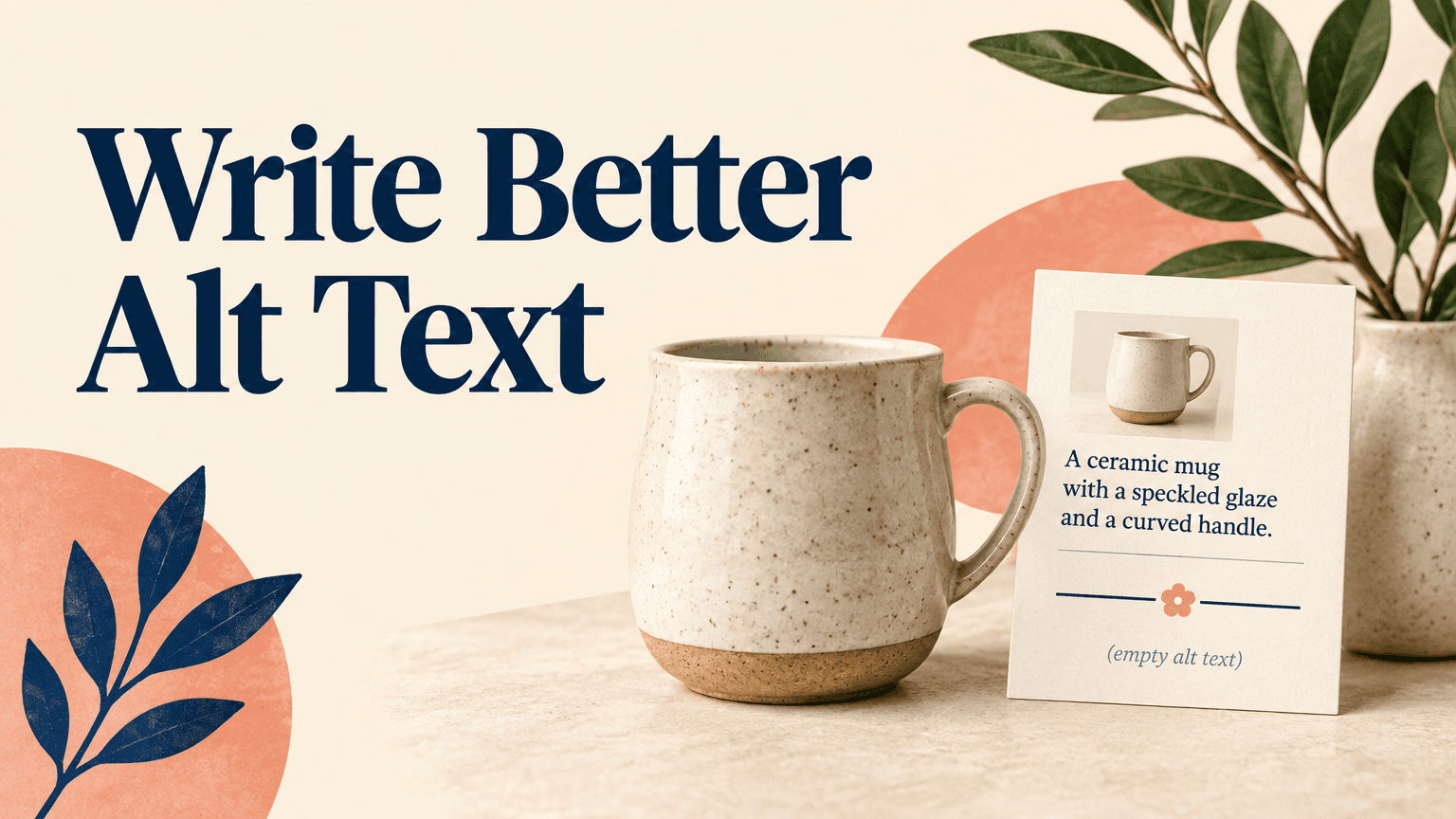
Write image alt text by asking what the reader would lose if the image disappeared. If the answer is a useful detail, a step in a process, or the purpose of a link, describe that information. If the answer is nothing because the image is purely decorative, use an empty alt attribute. This distinction matters more than finding a place to insert a target keyword.
For site owners and content editors, the practical goal is a repeatable decision: identify the image’s job, describe only what matters in context, and check how the description works alongside nearby text. The walkthrough below applies that method to editorial photos, products, charts, and linked images.
What Alt Text Does for Accessibility and SEO
Alt text is the text alternative supplied through an image’s alt attribute in HTML. Screen readers can use it to communicate an image’s information or function to people who cannot see it. Browsers may also display it when an image cannot load, though presentation varies.
For SEO, alt text gives search engines another signal about an image’s subject and its relationship to the page. It can support image understanding and relevance, but it is not a ranking guarantee or a substitute for useful page content. Search engines also interpret surrounding text and other page signals; an alt attribute does not have to carry the entire topic.
Alt text, captions, and filenames serve different purposes. A caption is visible page content that may explain significance, give credit, or add context. A filename identifies the image resource. Alt text supplies the information or function that would otherwise be unavailable without seeing the image. Do not assume that filling in a media title or caption field in your content management system also sets the HTML alt attribute.
Accessibility is the primary test: does the text provide a useful equivalent for the image in this location? A keyword belongs only when it naturally names something relevant that the image actually shows.
Decide Whether an Image Needs Alt Text
Classify the image before writing a description. The same photograph can be informative on one page and decorative on another. A photograph of a chair may show a product’s armrest design on a product page, but serve only as background decoration on a newsletter signup panel.
Informative: The image contributes facts, appearance, instructions, or meaning that the surrounding content does not adequately provide. Write a text alternative for that contribution.
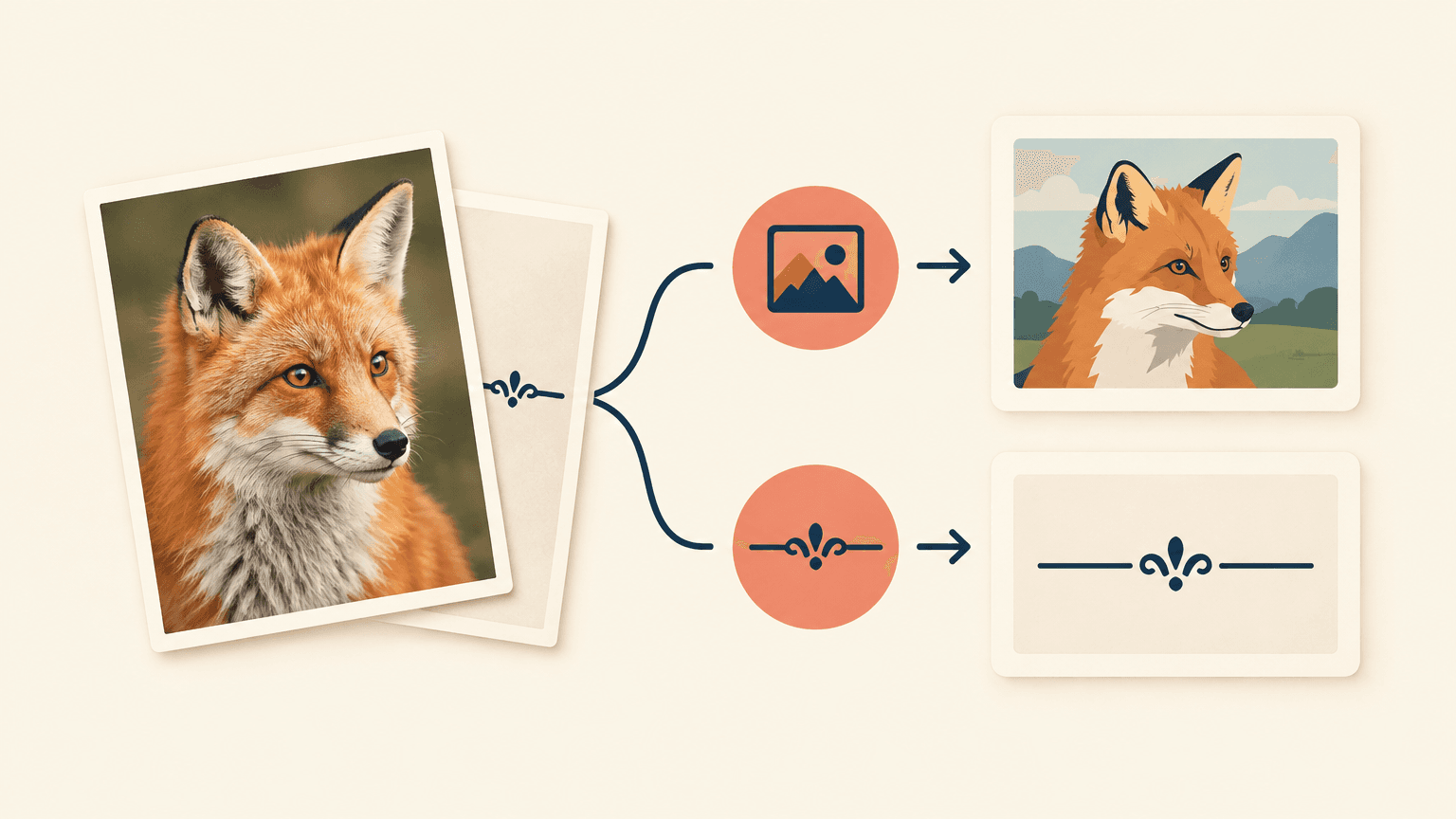
Decorative: The image adds atmosphere, spacing, or visual styling without contributing necessary information. Use an empty alt attribute.
Redundant: The image repeats nearby text without adding anything useful. An empty alt attribute may be appropriate if it leaves the meaning and functionality intact.
Functional: The image acts as a link or control. Its accessible name needs to explain the destination or action, not merely its appearance.
Complex: The image contains information that cannot fit usefully into a short description. Supply a brief alt description and a fuller text equivalent nearby.
For a decorative HTML image, use alt="". Empty and missing are not equivalent: when the attribute is missing, some assistive technologies may announce a filename or other unhelpful information. Do not write decorative image, spacer, or no description as the value; those words create unnecessary output instead of letting the image be skipped.
Do not classify an image as decorative just because writing its description is difficult. A diagram that explains an assembly step is informative even if the page already has a general introduction. Conversely, a large hero photo is not automatically informative simply because it occupies prominent space.
Background images need special attention. CSS background images do not have an HTML alt attribute. If a background conveys essential information, provide that information as accessible page text or reconsider how the image is implemented.
Write Descriptions That Match the Image and Its Context
Once an image needs a text alternative, start with its purpose on this particular page. Describe what is visible and relevant rather than everything you can identify. A short, specific sentence or phrase usually works better than either a vague label or a detailed inventory.
Read the nearby heading, paragraph, and caption. Establish what the reader is trying to understand.
Identify the image’s essential contribution. This might be a shape, a product detail, a location, a relationship, or the result of a task.
Draft a plain-language description with the main subject first. Add only the details needed to distinguish or explain it.
Remove information already supplied adequately nearby, unless it is needed to make the alternative understandable.
Check every claim against the image and reliable page context. Delete guesses about identity, emotion, materials, or intent.
Read the description in place of the image. Confirm that the page still makes sense without forcing the reader through repetition.
Hypothetical example: an article explains how to spot overwatered houseplants, and a photo shows a potted plant with yellow lower leaves and wet soil. A useful description is Potted plant with yellowing lower leaves and visibly wet soil. Houseplant image says too little, while best indoor plant care tips overwatering solutions adds search phrases instead of describing the evidence.
Context can change the right description. If that same photo appears in a guide to choosing planters and its purpose is to show drainage, the relevant detail may be water collecting in the saucer beneath the pot. Do not reuse an existing description without checking whether it fits the new use.
How Long Should Alt Text Be?
There is no universal character limit that makes alt text correct. Aim for the shortest description that preserves the image’s useful meaning. If you need several sentences to explain relationships, instructions, or data, move the fuller explanation into visible page content rather than compressing it into an awkward alt attribute.
Usually omit openings such as image of or picture of because assistive technology can identify the element as an image. Include the medium when it matters: a watercolor illustration, architectural rendering, or screenshot may communicate something different from a photograph. For screenshots, describe the relevant interface state or instruction rather than listing every visible menu item.
Handle Product Images, Charts, and Linked Images
Product Images: Describe the View and Meaningful Differences
A product image should help readers understand what is shown, especially when a gallery contains different angles, variants, or details. Use the product name when it helps identification, then describe the visible feature. Do not turn the description into a sales pitch or append a list of category keywords.
Hypothetical main view: Navy canvas backpack with a front zip pocket and tan handles.
Hypothetical alternate view: Rear view of the navy backpack showing padded shoulder straps.
Hypothetical detail view: Close-up of the backpack’s interior laptop sleeve and organizer pockets.
Include model or variant information when it distinguishes the pictured item and is confirmed by the product record. Avoid claims that cannot be established visually or from reliable context, such as waterproof, ethically made, or exceptionally durable. If gallery thumbnails are controls, also make sure their accessible names explain their action, such as showing a rear view; describing the image alone may not explain the control.
Charts and Diagrams: Put the Full Meaning on the Page
A chart needs more than a label such as sales graph. Briefly identify what it compares and, when useful, its main takeaway. Then provide the underlying information in accessible text, a properly structured table, or a fuller explanation. Readers should not have to infer essential values or relationships from the image alone.
Hypothetical example: for a chart comparing support requests by channel, a short alternative could be Bar chart of support requests by channel; email has the highest total. An adjacent table should provide the channel names and actual values. The summary conveys the pattern, while the table supports precise comparison. Make the fuller explanation easy to locate and avoid needlessly repeating it in the alt text.
For an instructional diagram, explain the sequence or relationships in nearby text. For an image containing essential words, include those words in the alternative if they are not otherwise available. When text is lengthy, publish it as real page text rather than requiring readers to access it only through an image description.
Linked Images: Name the Destination or Action
When an image is the only content inside a link, its text alternative generally needs to communicate where the link goes. A linked company logo leading to the homepage might use the company name followed by home. An image-only download link should identify what will be downloaded rather than describe the icon’s shape.
If a single link contains both a thumbnail and a descriptive article title, an empty alt attribute on the thumbnail can prevent the same title from being announced twice, provided the image adds no necessary information. If the thumbnail is a separate link, check that it has its own useful accessible name. Judge the complete link or control, not the image field in isolation.
Common Alt Text Mistakes, Including Keyword Stuffing
Keyword stuffing turns a text alternative into a search query list. It makes the description harder to understand and often introduces claims the image does not support. There is no useful keyword-density target for alt text. Use the natural name of the subject, even if it overlaps with the page’s target phrase, and stop when the image’s contribution is clear.
Repeating the page title on every image: This hides the differences between views and creates repetitive output.
Using filenames as descriptions: Values such as IMG_4821 or homepage-banner-final do not explain the image’s meaning.
Adding promotional language: Affordable, leading, and must-have usually describe marketing intent rather than visible content.
Guessing personal details: Do not infer someone’s identity, disability, ethnicity, or feelings from appearance.
Copying a long caption unchanged: Decide what visual information remains necessary instead of duplicating all surrounding context.
Treating every empty attribute as an error: Decorative images should normally have empty alternatives.
Leaving meaningful images without alternatives: A nearby heading does not automatically replace a diagram, product detail, or image-only link.
Automated or AI-generated descriptions can be drafting aids, but they need editorial review. A tool may recognize objects while missing the reason the image appears on the page. It may also misread text, invent details, or describe a decorative image that should be skipped. Check the actual image, its placement, and any functional role before publishing.
Audit Alt Text Across Important Pages
Start with pages where image information affects understanding or task completion: key product pages, instructional articles, landing pages, and shared navigation components. A small review of high-priority templates is more useful than automatically filling every blank field across the site.
Inventory the rendered images. Use a crawler, accessibility checker, or browser inspection to identify missing attributes, empty values, and repeated descriptions.
Classify each image in context. Mark it informative, decorative, functional, or complex before deciding whether a flagged value needs changing.
Fix task-blocking issues first. Prioritize unnamed image links and controls, missing instructional information, and charts without usable text equivalents.
Rewrite weak descriptions. Replace filenames, keyword lists, generic labels, and inaccurate details with concise contextual alternatives.
Inspect the published HTML. Confirm that the intended text reaches the alt attribute rather than only a media-library title or caption field.
Review shared components and responsive variants. Check whether templates override editorial entries or expose duplicate images to assistive technology.
Test the reading experience. Check link and button names and, where possible, review representative pages with a screen reader.
Record the decision. Keep a simple log of the page, image role, approved alternative, and any required template change.
Automated checks can find a missing attribute, but they cannot reliably decide whether a description is accurate or whether an image is decorative in context. An empty attribute may be correct; a populated attribute may still be useless. Combine technical checks with a visual and editorial review.
Also check how your content management system handles reuse. Some systems store one alternative per media item, while others allow page-specific overrides. If a shared description cannot suit every placement, use the available contextual controls or ask your developer how to support them. Make alt-text review part of publishing and revisit it when an image, caption, product variant, or surrounding explanation changes.
Next step: choose one important page and review every image in reading order. For each one, decide whether it contributes information, performs an action, or can be skipped. Then write or remove the description accordingly and verify the published result.